

The short answer
Keep the document. Replace the passage.
To humanize AI text and keep formatting under control, work on a copy of the original document. Rewrite one paragraph or list item, review it beside the original, then paste it back in the same place and check its style.
Humanize Ink returns plain text. It can help you revise wording, but fonts, page layout, automatic numbering and linked references need attention in Word, Google Docs or your Markdown editor.
Find the workflow for your document01 / Choose before you paste
Which workflow fits your document?
A short paragraph and a research paper need different handling. Start with the part that would be hardest to reconstruct.
| Your document | Edit here | Keep in the original |
|---|---|---|
| Email or short draft | One paragraph or a small set of plain paragraphs. | Signature, links and deliberate paragraph breaks. |
| Word or Google Docs | The prose inside a paragraph or list item. | Heading styles, lists, footnotes, tables and page settings. |
| Research paper | One passage with its factual context visible beside it. | Equations, exact quotes and linked citation fields. |
| Markdown | The sentence inside a heading, list item or block. | Markers, indentation, code fences and reference definitions. |
If you need a document’s full layout preserved automatically, a plain-text rewrite is not enough. For a paragraph-level edit, keeping the document open gives you control over what gets replaced.
02 / Know what you are preserving
“Formatting” covers three different things
A sentence can keep its meaning while losing its place in a list. It can also look correct while a date has changed. Review these layers separately:
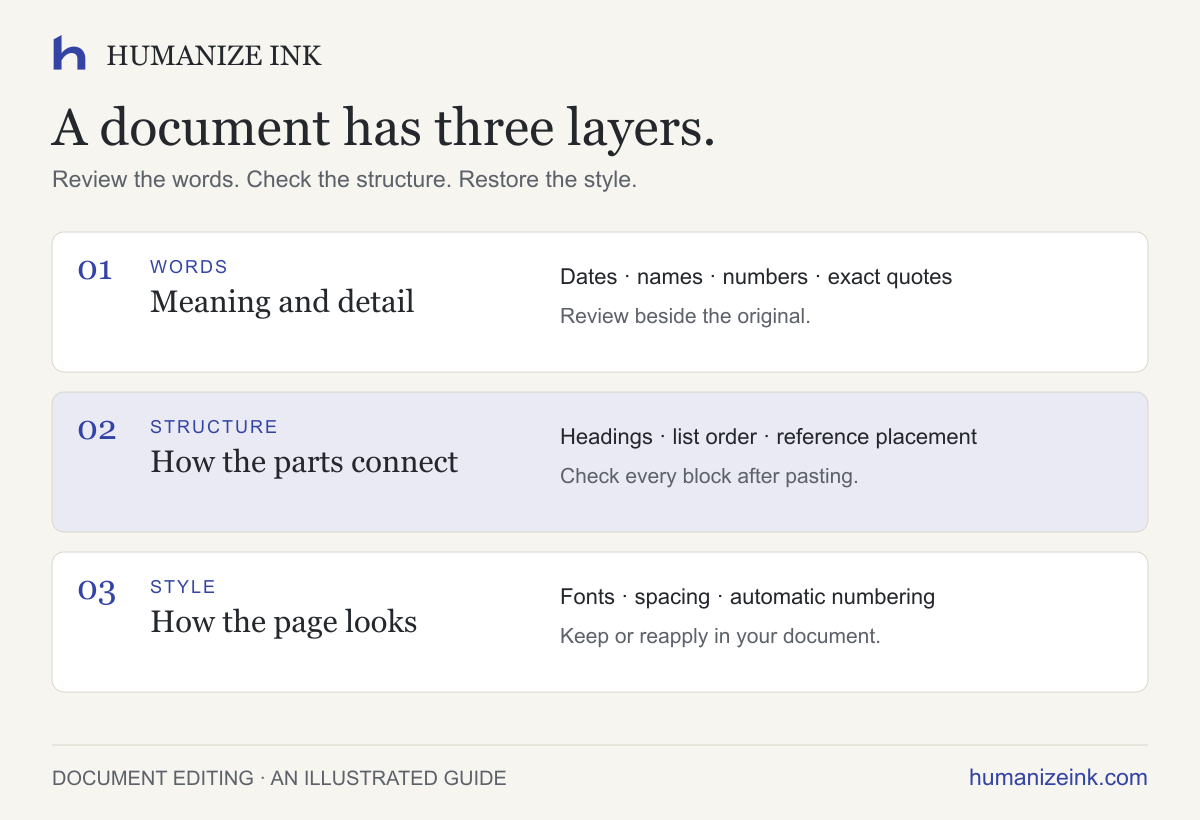
- Words: dates, names, quantities, qualifications and exact quotations.
- Structure: paragraph breaks, heading text, list order and where references appear.
- Style: fonts, spacing, automatic numbering, table layout and page settings.
Visible characters can travel through a text editor; the document features behind them may not. A typed “[2]” is text. A citation managed by your document or reference software is also a field or link that needs checking in that application.
03 / See what should change
A small edit, with the structure intact
This original teaching example changes one sentence. The heading, two list items and exact quotation stay in place.
BEFORE · ORIGINAL
Workshop notes
The workshop will take place at 10 a.m. on Thursday.
- Read the brief before the workshop.
- Send your questions by Friday.
“Keep the original notes.” [2]
AFTER · MANUALLY EDITED
Workshop notes
The workshop starts at 10 a.m. on Thursday.
- Read the brief before the workshop.
- Send your questions by Friday.
“Keep the original notes.” [2]
Replace only the opening sentence; keep the heading, list items and quotation in the document.
The shorter opening preserves the start time and day. Friday still belongs to the questions deadline, and [2] stays with the quotation. A polished paragraph that merges both numbered steps would still need repair: the list expresses two separate actions.
04 / The repeatable method
Rewrite one passage, then put it back
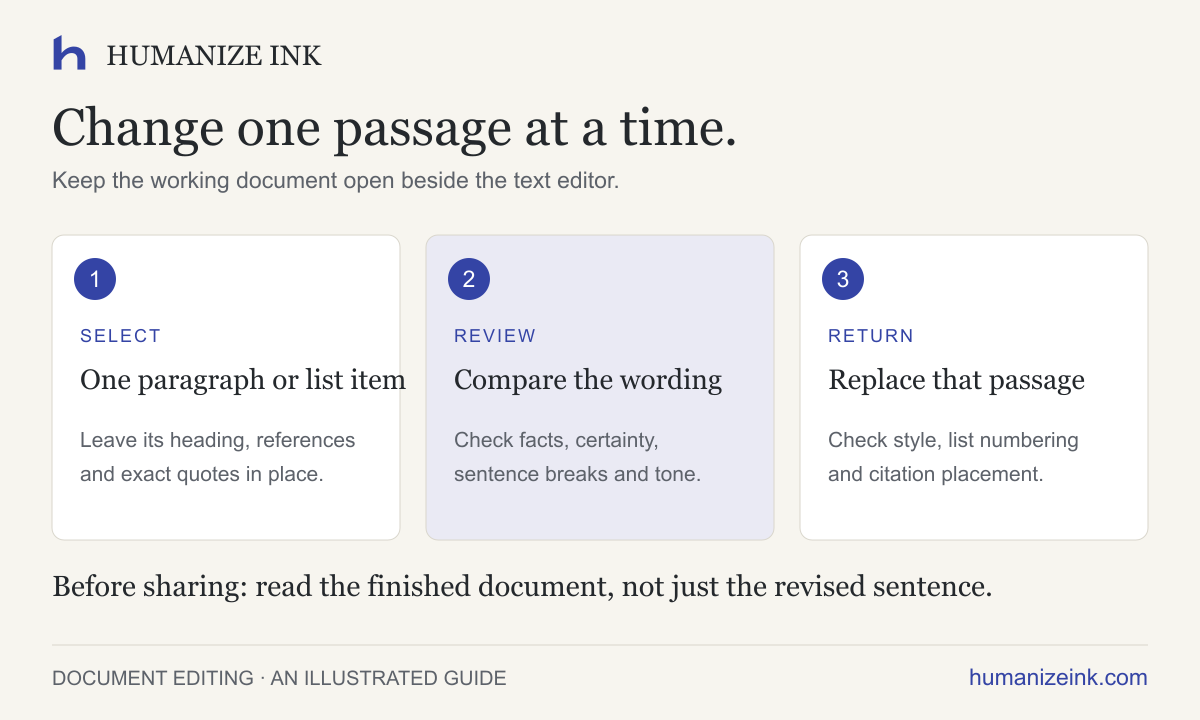
- Make a working copy. Keep the original open. Select one paragraph or list item, leaving its heading and surrounding references visible.
- Choose what to change. Paste that passage into the editor. Set tone, strength and readability for the wording. Keep an exact quote outside the selection if it must remain verbatim. Run the rewrite, then review the result beside the original.
- Read the result beside the original. Open Changes to inspect edits. Check meaning and certainty before checking paragraph breaks. “May improve” should not quietly become “will improve.”
- Make your final edits. Use Edit, save the wording you want, then copy the final passage. A highlighted difference shows a change; it does not tell you whether that change is correct.
- Replace only that passage. Back in the working document, check its paragraph style, list number and reference placement. Continue with the next passage only after this one is right.
Have a paragraph ready?
Start with one English passage. Keep the original document open for comparison.
Open the text editorAvoid sensitive information. Privacy
The editor accepts up to 1,200 words and 8,000 characters per attempt, including an enabled style sample. Breaking work into passages also makes a detailed review easier.
05 / Return to the document
Word and Google Docs: restore the destination style
In Microsoft Word
Select the wording inside the paragraph you want to replace, rather than the heading or an entire numbered block. After pasting, inspect the paragraph’s style and list sequence.
Word provides Keep Source Formatting, Merge Formatting and Keep Text Only. Plain text copied from Humanize Ink does not include your old Word styling. Keep Text Only uses formatting from the destination context; check that context first. For a numbered list, inspect whether the sequence continues as intended. See Microsoft’s paste-formatting guidance for the available options in your version.
In Google Docs
Paste into the paragraph you are replacing and inspect the result. If its appearance differs, select text with the desired formatting, choose Paint format, then select the revised passage. Google documents this process in its copy, paste and paint-format guide.
In either application, check bold or italic spans within the paragraph, not just the overall font. Review footnotes and linked citations in the document itself; copying visible reference text does not recreate those features.
06 / Plain text with structure
Markdown: protect the markers, then check the preview
Markdown uses text characters to describe structure. Keep markers outside the wording you replace when possible. A changed indent, missing list marker or removed blank line can affect how the page renders.
# Workshop notes

The workshop starts at 10 a.m. on Thursday.

1. Read the brief before the workshop.
2. Send your questions by Friday.

> "Keep the original notes." [2]
Here, # marks a heading, 1. and 2. mark list items, and > starts a quotation. The typed [2] remains ordinary text unless your publishing setup gives it another meaning. After editing, preview the page in the application where you will publish it.
The CommonMark specification explains heading, list and quotation rules. Tables and footnotes may depend on your editor’s extensions; check those in your actual preview.
07 / If something changes
Five formatting problems—and the next useful check
The list becomes one paragraph
Return to the original list. Replace the prose inside each item separately, then confirm the item count and order.
The font or spacing looks wrong
Check the destination paragraph’s style. Reapply that style, then restore any intentional bold or italic spans.
Numbering restarts or skips
Check the list’s continuation setting in the document editor. Do not manually type numbers over automatic numbering to hide the problem.
A quote or citation changes
Restore the exact quotation and its marker from the original. Check the link or reference field in the document, then reread the surrounding claim.
Markdown renders differently
Compare indentation, markers, blank lines and code fences. Inspect the rendered blocks as well as their source text.
Questions, answered
Can I keep formatting by asking the humanizer to preserve it?
That instruction can express your preference, but it does not carry fonts, page settings or reference fields through a plain-text editor. Compare the result and restore the document’s styles separately.
Does Light rewriting preserve more formatting?
Light requests fewer wording changes. It is not a formatting lock: check paragraph boundaries and list items at every strength.
Should I paste a whole table into the editor?
For layout-sensitive tables, edit the wording in one cell at a time and return it to that cell. Plain text does not preserve the table’s cell structure, widths or alignment.
Can I upload a Word document or PDF here?
Humanize Ink supports pasted English text and TXT or Markdown import. It does not import Word or PDF layout. Keep those documents open and move only the passage you want to edit.
What should stay out of the rewrite?
Leave exact quotations, equations, reference fields and text that must remain verbatim in your working document. Edit the surrounding prose, then check that each reference still supports the right statement.
Before you share the finished document
- Meaning and certainty match the original.
- Names, dates, numbers, exact quotes and citation markers are right.
- Headings, lists, tables and paragraph breaks still make sense.
- Links, reference fields and footnotes work in the document.
- The final preview or exported file looks right.
For research writing, continue with editing a research-paper passage. For wordy language rather than document layout, read how to unslop AI text without losing meaning.
Sources & further reading
Official documentation checked November 8, 2026. See the application-specific instructions here:
- Microsoft Support: Control the formatting when you paste textPaste options and numbered-list behavior in Word.
- Google Docs Editors Help: Copy and paste text and imagesCopying text formatting with Paint format.
- CommonMark specification, version 0.31.2Headings, lists, block quotations and Markdown structure.